

Your first show
From nothing to lights moving with music in about ten minutes. You need a computer (Windows, Mac, Linux or a Raspberry Pi) on the same Wi-Fi as your lights. No lights yet? You can still try everything with a pretend room on screen, or in the online demo without installing anything.
flowchart LR
  A["Install Tempolight"] --> B["Open it in the browser"]
  B --> W1
  subgraph W["Setup wizard"]
    direction LR
    W1["1 Find your lights"] --> W2["2 Pick your room"] --> W3["3 Fix the timing"] --> W4["4 Play a test song"] --> W5["5 All set"]
  end
  W5 --> S["Your first show"]
1. Install
Pick one. All of them run the same app; install.md has every option in detail.
| Your computer | Easiest way |
|---|---|
| Windows 10/11 | Download tempolight-windows-x64.exe from the latest release and double-click it. If Windows says Windows protected your PC, click More info → Run anyway |
| Mac | Download Tempolight-macos-arm64.dmg (Apple silicon, M1 and later) or Tempolight-macos-x64.dmg (Intel), drag Tempolight to Applications. The first time, right-click it → Open → Open |
| Linux PC | tempolight-linux-x64.tar.gz from the release, or brew install d4rkgeek/tempolight/tempolight |
| Raspberry Pi | Flash the ready-made image: raspberry-pi.md. It opens at http://tempolight.local |
| Anything with Docker | docker.md |
When Windows or macOS asks whether Tempolight may accept incoming connections, choose Allow (private networks). Without it, your phone can't open Tempolight and some lights can't be found.
2. Open it
Starting Tempolight opens your browser at http://localhost:8080. If it doesn't, type that address yourself. The
window (or terminal) that opens also lists an On your phone address such as http://192.168.1.20:8080: open that
on any phone or tablet on the same Wi-Fi to control the lights from there, and use Share → Add to Home Screen
(iPhone) or Install app (Android) to keep it as an app.
3. The setup wizard
On the first start, with no lights added yet, a full-screen wizard opens by itself. The dots at the top show where you are; Back and Skip are at the bottom, Skip setup (or the Esc key) at the top right closes it. You can run it again any time from Settings → About → Run setup again.
Step 1: Find your lights
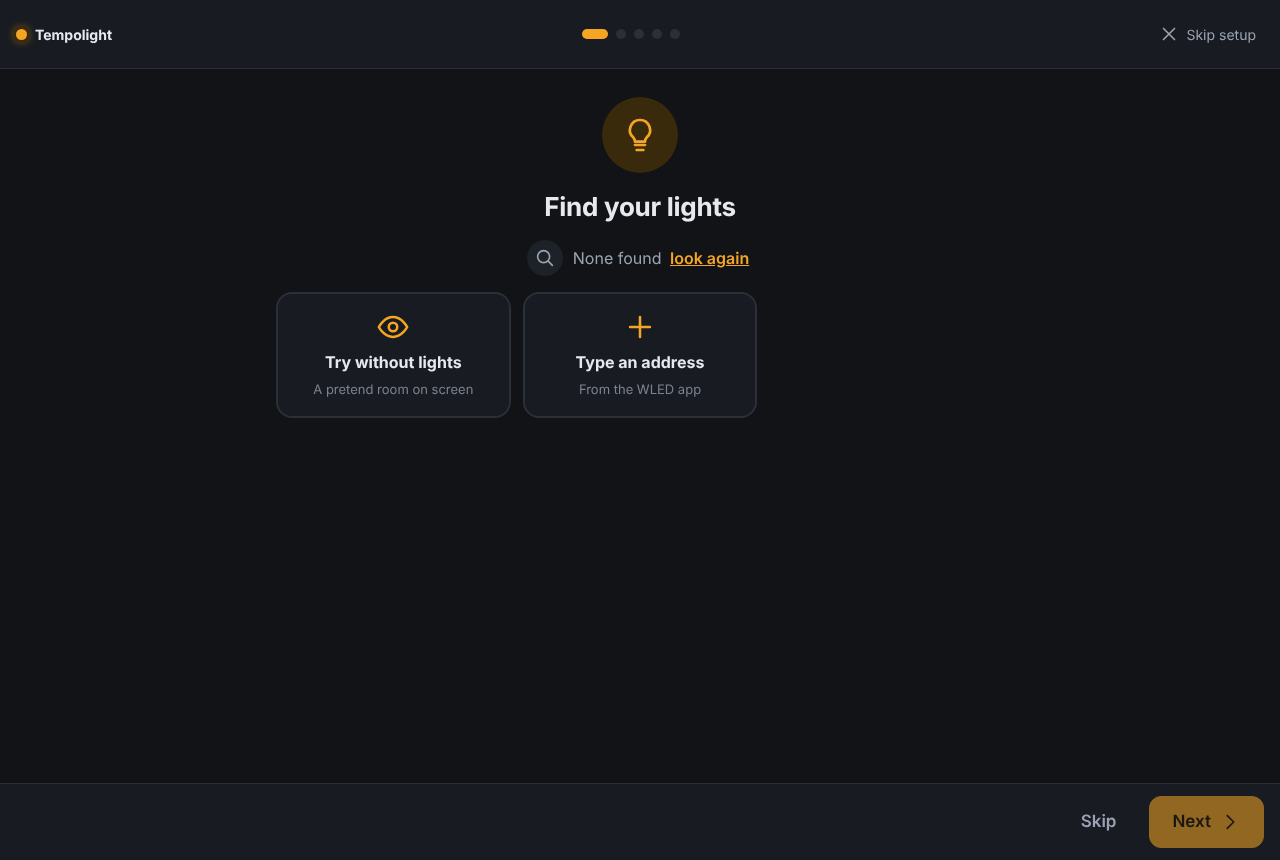
The wizard looks for lights on your network straight away (Looking for lights…). It finds WLED controllers, Govee lights with LAN Control, LIFX, WiZ, TP-Link Kasa, Yeelight and Twinkly lights, and PC lighting from OpenRGB.
- Found some? Each one is a tile. Tap a tile to add it (it gets a tick), or tap add all.
- None found? Tap look again, or tap Type an address and enter the IP address shown in the WLED app (for
example
192.168.1.42), then Add. Philips Hue and Nanoleaf aren't found by the scan: add them later on the Devices page (connect-lights.md). - No lights yet? Tap Try without lights. It adds a Virtual room: a living room drawn on screen that shows exactly what real lights would.
The line at the bottom says N lights ready. Next works once at least one light is added.
Step 2: Pick your room
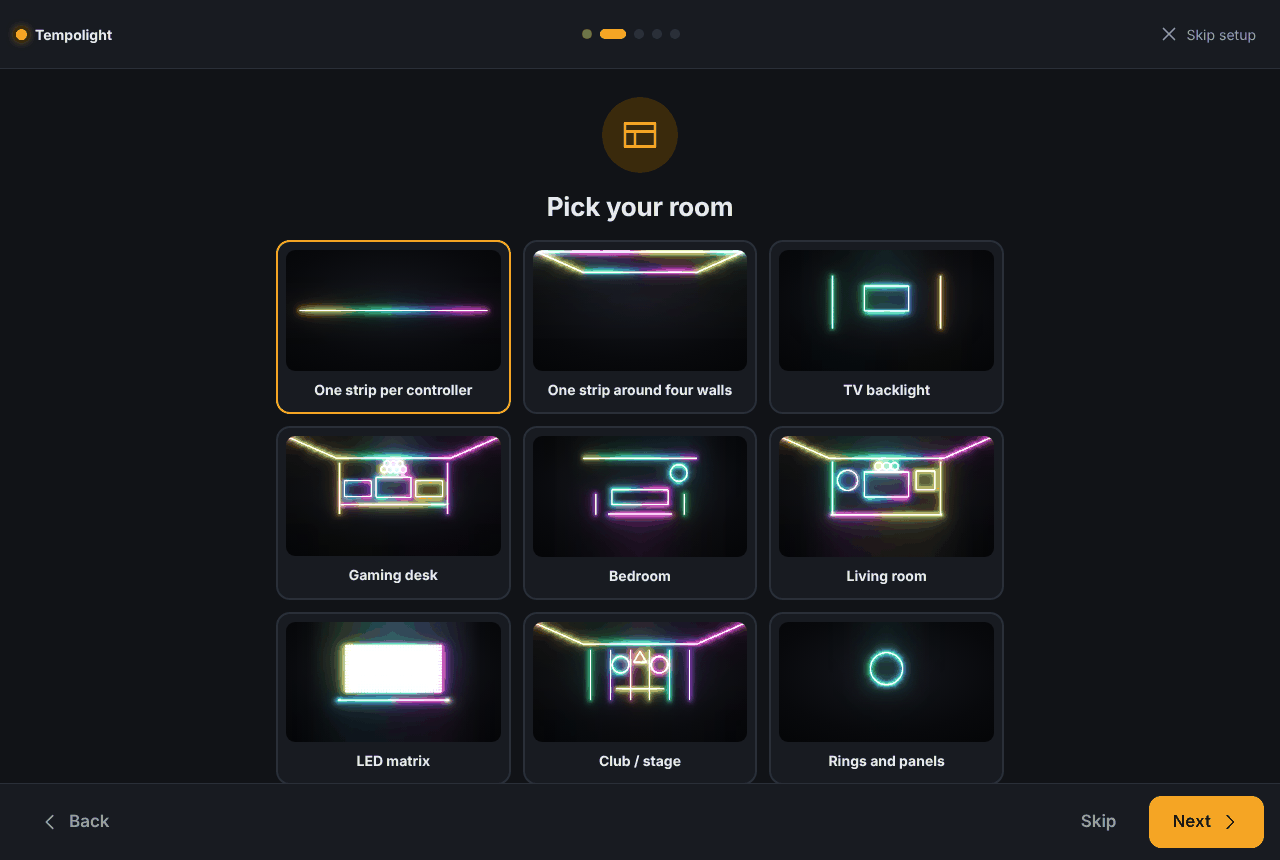
Each picture is a room layout drawn with your own controllers. Tap the one closest to your room. If you're not sure, One strip per controller is the simplest and always works. You can change everything later on the Room page (room-and-zones.md).
Step 3: Fix the timing
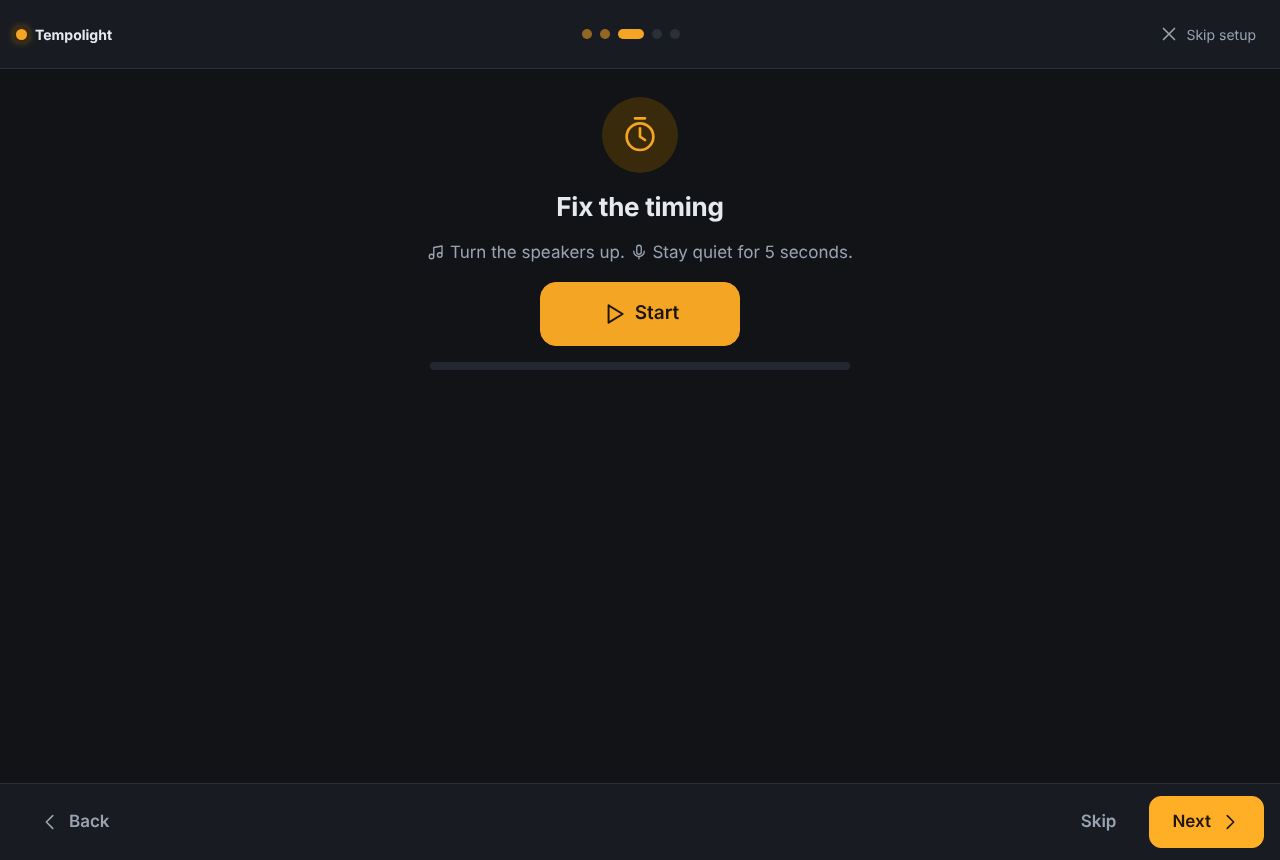
Speakers (Bluetooth ones especially) play the sound a little late, so the lights would flash before you hear the beat. Turn the speakers up, tap Start and stay quiet for 5 seconds: Tempolight plays a few clicks, listens with the microphone and sets the delay. It says, for example, Done. Speakers: 180 ms. Lights set +160 ms.
- Nothing heard or The clicks were hard to hear: turn the speakers up, move closer and tap Again.
- This browser can't use the microphone here: browsers only allow the microphone on
localhostor a secure (https) page. Tap Skip and do it later on the computer running Tempolight (Music → Timing → Fix the timing automatically).
Step 4: Play a test song
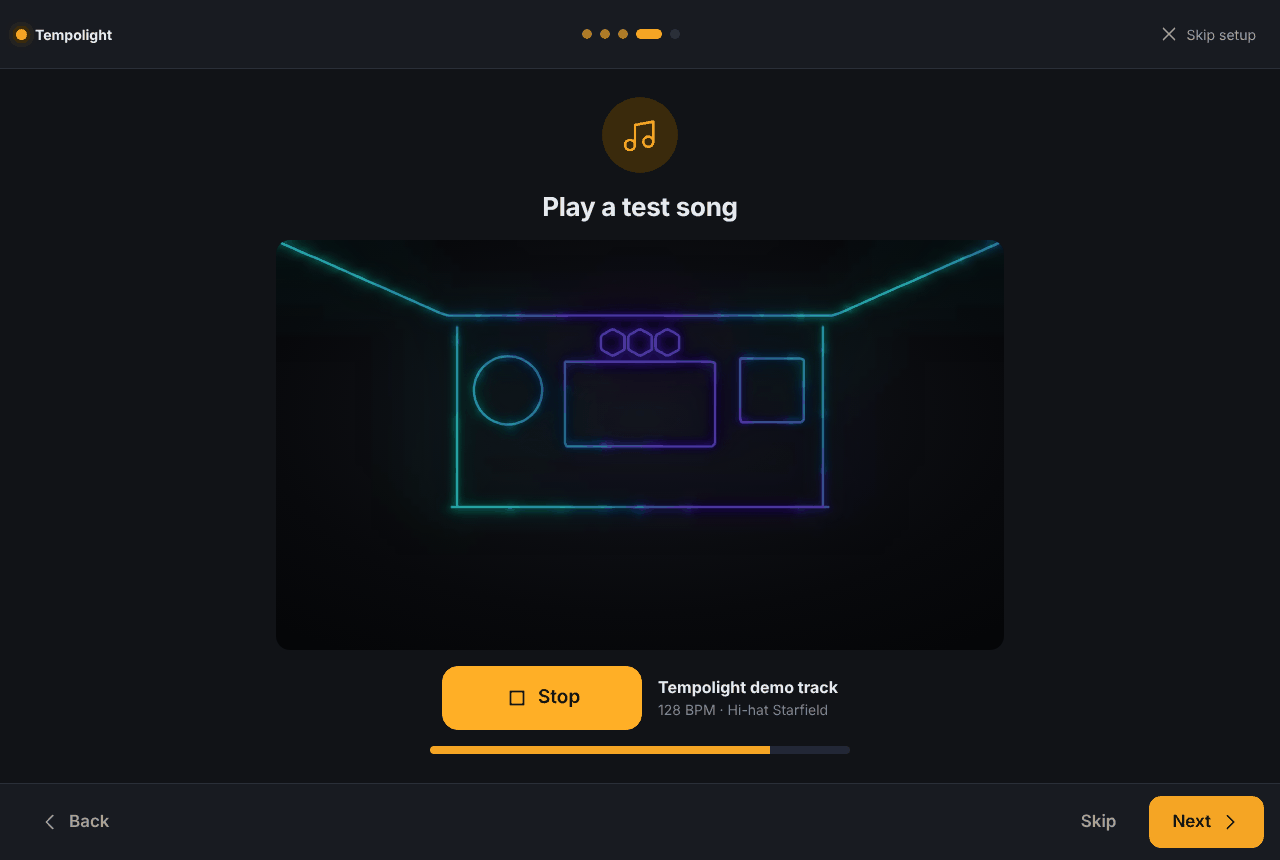
Tap Play. Tempolight first listens to the whole song (Listening to it first… 40%), then plays it with the lights. Below the button you see the tempo and the effect that's showing. Your real lights do the same as the picture.
Step 5: All set
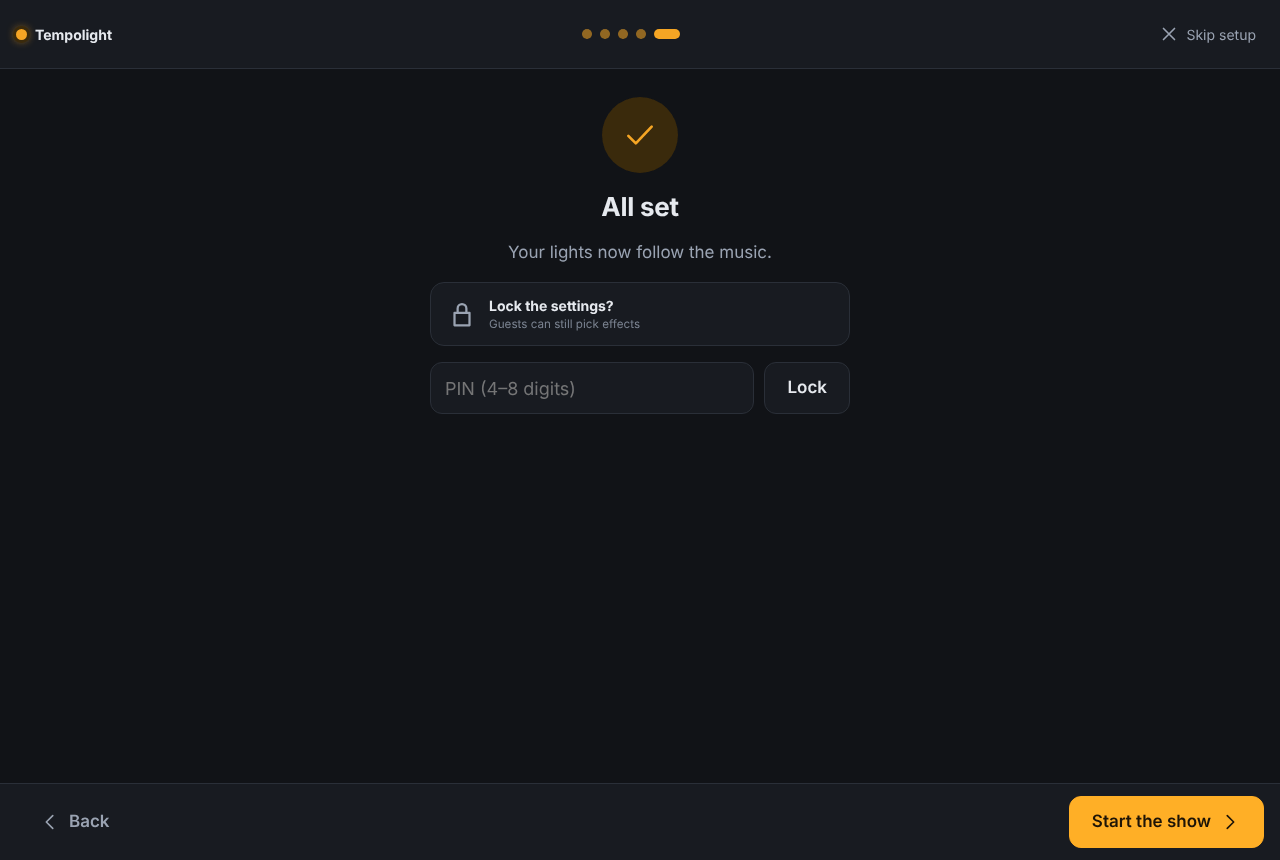
Optional: type a PIN (4 to 8 digits) and tap Lock, so guests can't change your devices and settings (they can still pick effects). Then tap Start the show. You land on the Home page.
4. Your first show
The Home page shows the live preview, what's playing, and the main controls. Play your own music:
- Open Music in the menu.
- Tap Add songs… and pick a few songs from your computer (MP3, M4A, WAV, OGG, FLAC). Nothing is uploaded: songs play in the browser, and each one is analysed first, so the lights know where the build-ups and drops are (they're marked on the progress bar).
- Or play music anywhere else (Spotify, YouTube, a DJ app) and tap Listen to this computer's sound or Listen with a microphone. Which source is best for you: music-sources.md.
The Lights switch and the brightness slider at the top work on every page. Effects change by themselves with the music (Automatic); pick one by hand on Effects and go back with Back to automatic.
Where next
- Connect more kinds of lights: Hue, Nanoleaf, LIFX, DMX fixtures and more
- Draw your real room, so effects move across it the way it really is
- Spotify: the lights follow Spotify with the whole beat map
- Parties and DJs, smart home and voice, streamers and gamers
- Something not working? troubleshooting.md