

Parties and DJs
Tempolight runs a party on its own: it hears or knows the music, builds up with the build-ups and hits the drops. This page is about taking control when you want to: playing the lights live, scenes, guests and their phones, and DJ gear.
flowchart LR
  subgraph Before["Before the party"]
    direction TB
    B1["Fix the timing"] --> B2["Save scenes"] --> B3["Lock with a PIN"]
  end
  subgraph During["During"]
    direction TB
    D1["Automatic show"] --- D2["Live pads, MIDI pads"]
    D2 --- D3["Guest requests, phones as lights"]
  end
  Before --> During
Before the party
Fix the timing where the speakers are: Music → Timing → Fix the timing automatically. A party PA or Bluetooth speaker adds a delay the lights must know about.
Pick the music source (music-sources.md). Song files in the app (or songs Tempolight already remembers) give the best drops: they're known before they come.
Save scenes for the moods you'll want: set up effects, colours and brightness, then Home → Save as scene (or Scenes & schedules → Save current as scene). New installs come with Party mode, Chill mode, Movie mode, Focus mode and Relax.
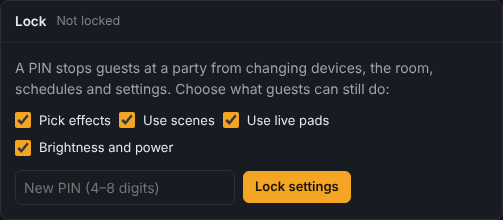
Lock it (picture below): Settings → Lock, choose what guests may still do (Pick effects, Use scenes, Use live pads, Brightness and power), type a PIN and Lock settings. The device you locked from stays unlocked; everyone else needs the PIN for devices, the room, schedules and settings. Lock now on this device locks yours too.
Photosensitive-safe mode if anyone may be sensitive to flashing light: Settings → Lighting → Photosensitive-safe mode (at most 3 flashes a second). Over the whole show (pads, drops, games and chat), big jumps in brightness are held to 3 a second; strobes from chat become a single flash; DMX strobes and lasers stay off.
Live pads
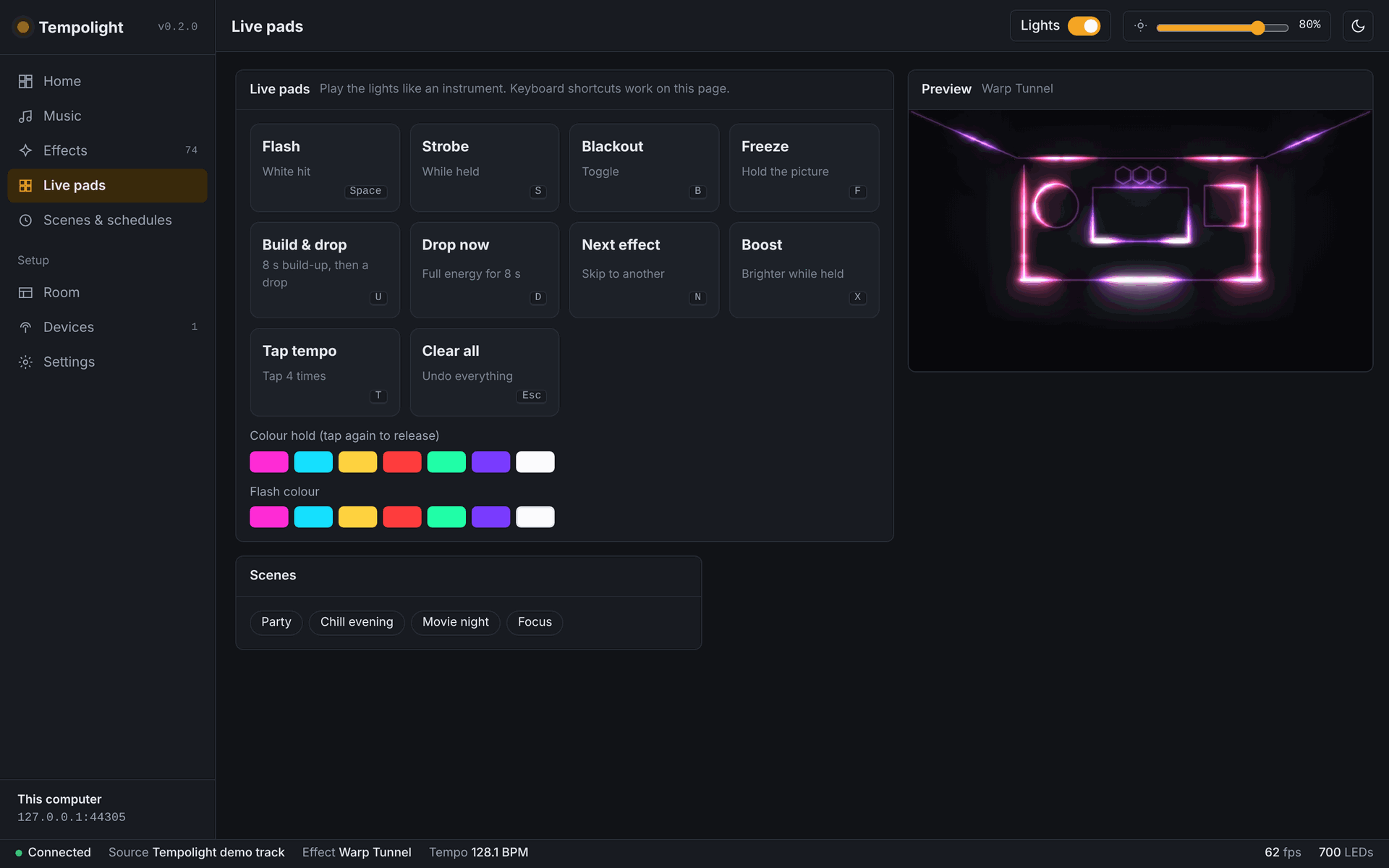
Live pads (in the menu) plays the lights like an instrument, on top of whatever is showing. Keyboard shortcuts work while the page is open:
| Pad | Key | What it does |
|---|---|---|
| Flash | Space | a white hit (or the Flash colour you picked) |
| Strobe | S | strobe while held |
| Blackout | B | dark until pressed again |
| Freeze | F | hold the picture until pressed again |
| Build & drop | U | an 8-second build-up, then a drop |
| Drop now | D | full energy for 8 seconds |
| Next effect | N | skip to another effect |
| Boost | X | brighter while held |
| Tap tempo | T | tap 4 times on the beat |
| Clear all | Esc | undo everything the pads did |
| Fog | G | fog while held (only shown with a DMX fog machine) |
Colour hold: tap a colour to keep the whole room in it, tap again to let go. The pads work from a phone too: open Tempolight on the phone and keep the Live pads page open.
MIDI pads
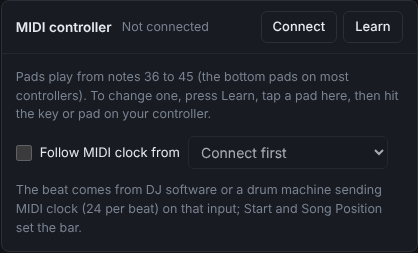
Any MIDI pad controller (Akai MPD, Novation Launchpad, a DJ controller's pads) can play the pads, in Chrome or Edge on a computer:
- Plug it in, then Live pads → MIDI controller → Connect. It says Connected: … with the controller's name.
- Notes 36 to 45 (the bottom pads on most controllers) play the pads in the order of the table above.
- To change one: press Learn, tap a pad on the page, then hit the key on the controller. Press Learn again to stop. The mapping is kept in that browser.
Scenes and schedules
A scene remembers the effect (or Automatic with a style), colours and brightness. Apply one with a tap on Home or Live pads, from the Stream Deck, Home Assistant, Siri or a schedule. Scenes & schedules also renames scenes, Update to current saves what's showing into a scene, and Schedules runs scenes at set times ("Chill evening at 19:00 on weekdays", "Lights off at 01:00").
Guest requests
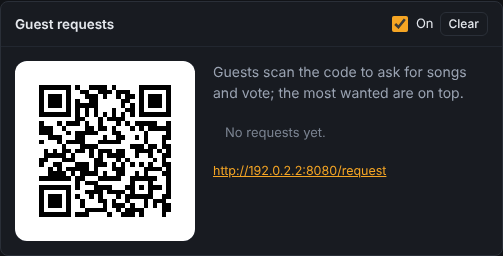
Guests ask for songs from their phones:
- Music → Guest requests: make sure On is ticked (it is by default).
- Show the QR code (or the link under it) to your guests. It opens a Request a song page: they type a song and Send request, and vote with ▲ for the ones already asked.
- The most wanted are on top. Press Played when you've played one, Clear to start over.
It works while settings are locked. Phones must be on the same Wi-Fi as Tempolight.
Phones as lights
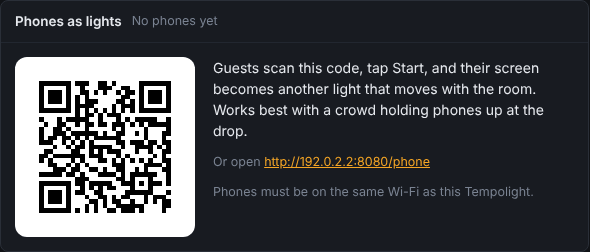
Every phone in the crowd becomes part of the show:
- Live pads → Phones as lights shows a QR code (and the link). Show it on a screen or print it.
- Guests on the same Wi-Fi scan it and see Be a light. They turn their brightness up and tap Start.
- Each phone shows its own part of the room, so a crowd holding phones up moves with the show. The panel counts the phones that joined.
Crowd tips:
- Put the QR code where people wait: the bar, the entrance, on the DJ booth screen.
- Ask everyone to hold phones up at the drop: that's the moment it looks best.
- A guest Wi-Fi often can't reach Tempolight. Use a network where phones and Tempolight see each other.
- In the online demo, open the link in another browser tab to try it.
Recording a clip
Home → Record clip records 15 seconds of the live preview with the music and offers to share or save it.
DJ gear
flowchart LR
  CDJ["Pioneer CDJ / XDJ"] -- "Pro DJ Link beat packets" --> TL["Tempolight"]
  LIVE["Ableton Live, Traktor, Bitwig"] -- "Ableton Link (beta)" --> TL
  MIDI["DJ software, drum machine"] -- "MIDI clock, via the browser" --> TL
  MIX["The mixer's sound"] -- "Listen live or on the server" --> TL
  TL -- "only listens" --> LIGHTS["Lights"]
All three only listen: Tempolight never sends anything to the DJ's gear, never joins as a player and never changes the tempo. Combine them with live listening (a line from the mixer's booth or record output into a sound card) so effects also react to the sound itself.
Pioneer Pro DJ Link
- Connect the computer running Tempolight to the same network switch as the linked CDJs or XDJs (Ethernet is best).
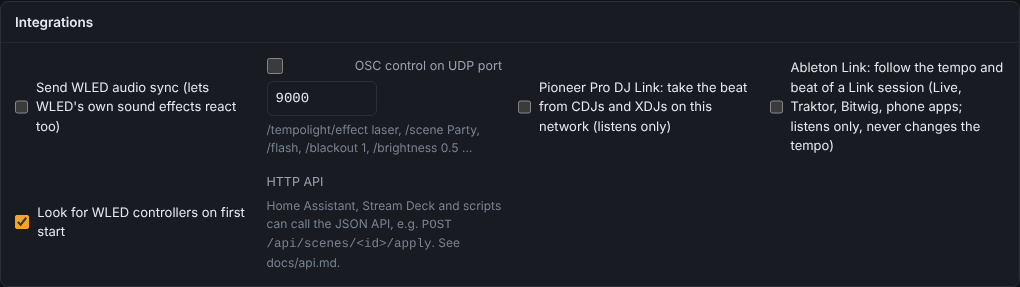
- Settings → Integrations → tick Pioneer Pro DJ Link: take the beat from CDJs and XDJs on this network.
- Tempolight follows the tempo (with pitch) and the bar position of the deck that's on air; the mixer's on-air flags decide between two playing decks. A stopped deck lets go after two beats.
Ableton Link (beta)
Settings → Integrations → tick Ableton Link. Tempolight follows the tempo and beat of a Link session on the same network (Ableton Live, Traktor, Bitwig, many phone apps). Written from the open protocol and tested against a pretend peer; not yet checked against Live itself. Bars assume 4 beats.
MIDI clock
Live pads → MIDI controller → Connect, then tick Follow MIDI clock from and pick the input that receives the clock (from DJ software, a drum machine, or a USB-MIDI interface). The status says Following …: 128 BPM. Press Start on the sending side so Tempolight knows beat 1; until then it says the bar is a guess. Chrome or Edge on a computer; keep that page open.
Lighting desks and Companion
OSC (Settings → Integrations → OSC control on UDP port, 9000 by default) takes /tempolight/effect laser,
/tempolight/scene Party, /tempolight/flash, /tempolight/blackout 1, /tempolight/brightness 0.5 and more from
TouchOSC, Bitfocus Companion or a lighting desk.
Advanced
- DMX fixtures (pars, moving heads, lasers, fog) follow the same show: connect-lights.md.
- Show editor: Music → Song memory → Edit show puts effect blocks, colour blocks, flash, strobe, blackout, build and drop cues and brightness keyframes on the song's waveform, snapping to beats and bars.
- Change effect every N beats and the Accent layer (Effects page) shape how the automatic show feels.
- The pads in the API:
POST /api/action {"type": "flash"}and so on (api.md).